


How to connect Cursor to WordPress
Give Cursor access to your WordPress site with HyIMPACT, so it can work on pages, builders and SEO while you code.
“List the tools from my WordPress server.”
| Content | Posts, pages, menus, media |
| Builder | Elementor elements, classes, variables |
| SEO | Titles, meta, schema, redirects |
| GA4, Ads and Tag Manager tags | |
| Safety | Production mode on · writes logged |
On this page
Before you start
- A WordPress site on HTTPS, with HyIMPACT installed
- An administrator login
- Cursor on your computer
- Node.js (the Cursor setup runs the connector with npx)
Step 1: Turn on AI abilities
In WP Admin, open HyIMPACT → Configuration. Tick "Turn on AI Abilities for this site" and choose Save Settings. Your browser asks you to confirm: choose OK. Steps 2 and 3 appear once the setting is saved.
Example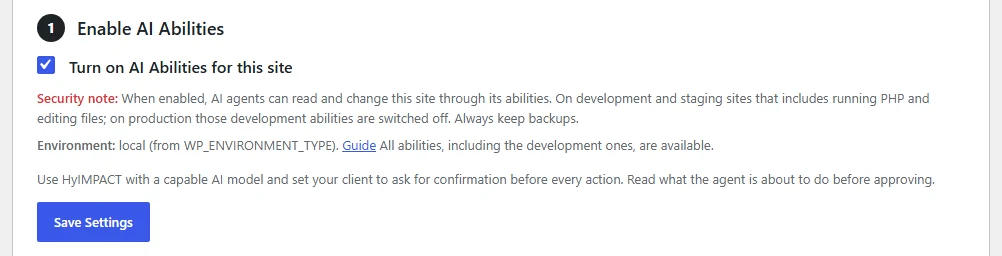
Step 1 on a test site. The Environment line shows how HyIMPACT reads the site. On production the development abilities stay off. Step 2: Create an application password
Under Application Password, choose "Generate application password". HyIMPACT creates the password for your user, shows it once and adds it to the setup text in step 3. To tell your passwords apart later, first open "Customize password name (optional)" and name it after the tool, for example “Cursor on laptop”.
Example
The new password (masked in this screenshot). Treat it like a password. Don’t share the setup text, and revoke the password under “Manage existing application passwords” if it leaks.Step 3: Add the server to Cursor
Choose "Copy prompt" and paste the text into Cursor’s agent. It adds the server for you. Or open “Need the JSON config for a specific client?”, choose Cursor and add the snippet to
mcp.json. If the file already lists servers, put the new entry insidemcpServersnext to them.- All projects
~/.cursor/mcp.json - This project
.cursor/mcp.json
Example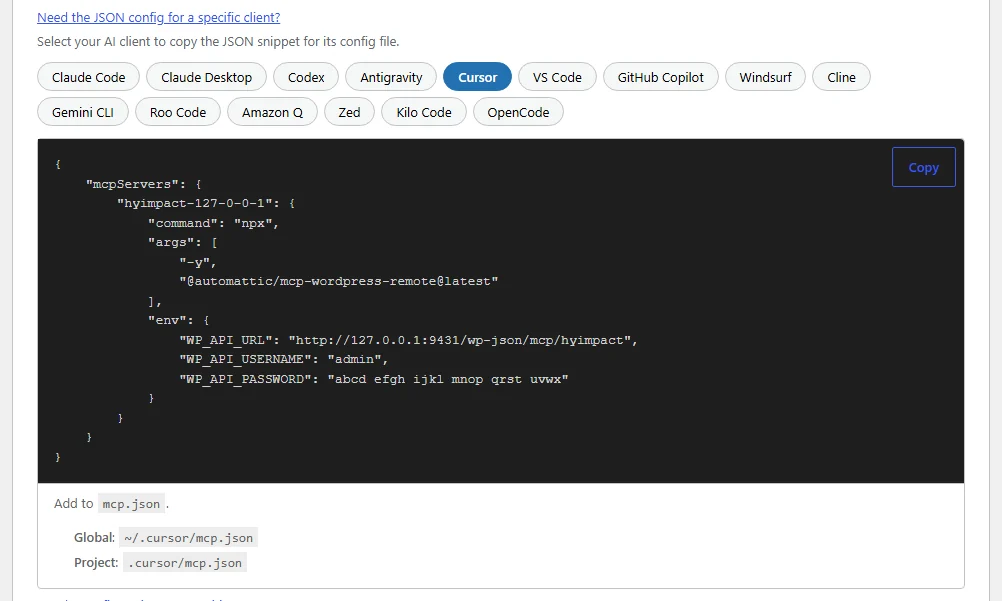
The Cursor snippet (password masked). - All projects
Step 4: Reload and test
Restart Cursor and check in its MCP settings that the server is on and lists its tools. HyIMPACT shows your AI three tools: discover abilities, get ability info and execute ability. Through them it reaches every ability the site has. Then ask:
- “Which pages does my site have?”
Common errors
- “Unauthorized” or 401A security plugin may block application passwords. Allow them for your user, then create a new one.
- Application passwords are missingWordPress only offers them on HTTPS sites. Add HTTPS first. On a local site over HTTP, HyIMPACT shows the line to add to wp-config.php:
define('WP_ENVIRONMENT_TYPE', 'local'); - Wrong addressThe endpoint ends in /wp-json/mcp/hyimpact. Use the exact address from the Configuration page.
- "npx" not foundThis setup runs the connector with Node.js. Install Node.js, then restart your AI tool.
- No tools, or a timeoutRestart Cursor: it loads new servers on start. The first start takes longer while npx downloads the connector, and a slow site can time out the first check. Wait a minute and try again.
Cursor questions
Should I add it globally or per project?
Per project keeps each client’s site in its own repository. Global makes one site available everywhere.
Can Cursor edit theme files?
On staging, yes. On production those tools stay off unless an admin turns them on.
Explore more
Connect Cursor step by step
The setup text comes from HyIMPACT → Configuration on your own site.